

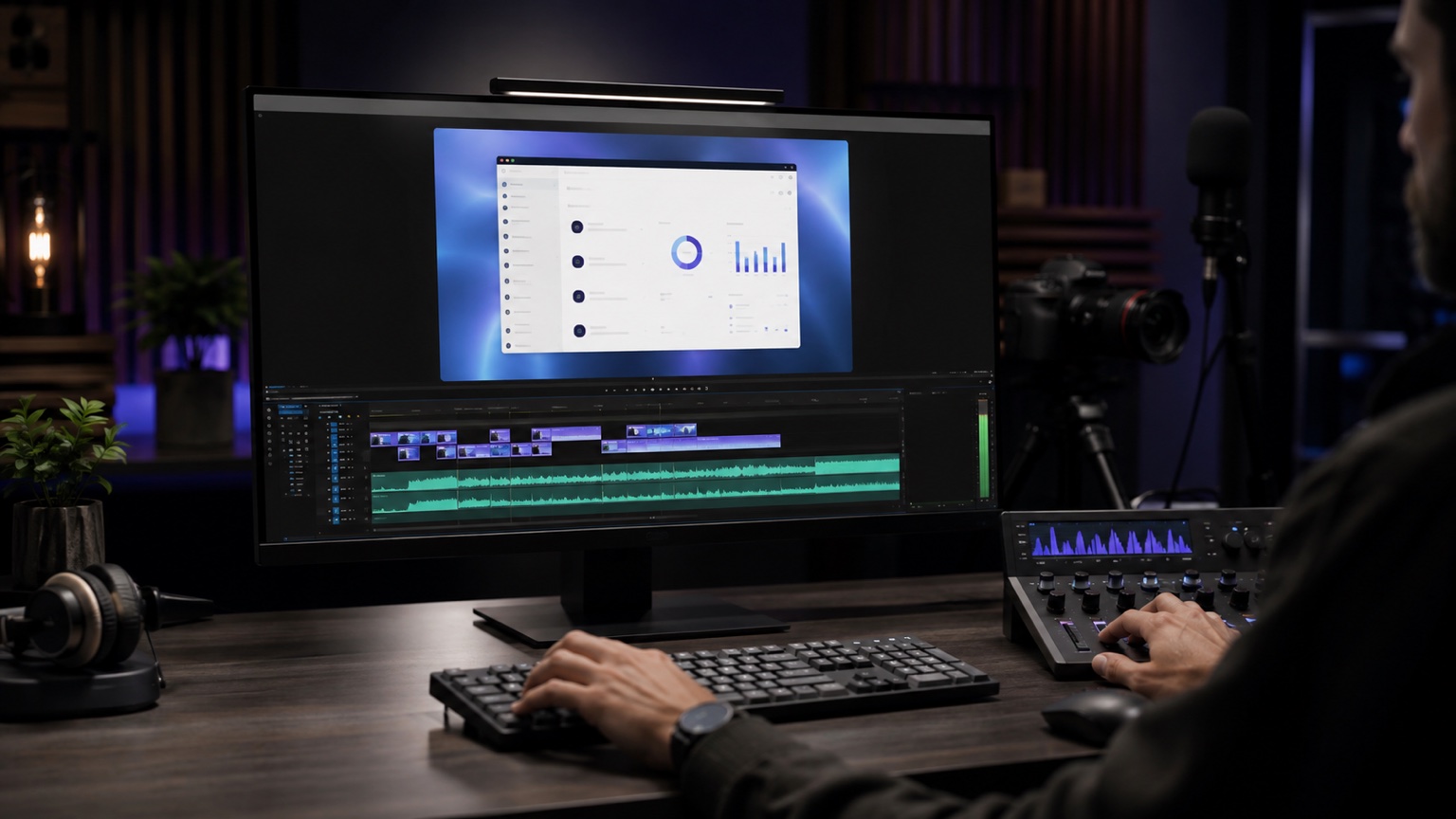
An instructional film from a screen recording should show one process so clearly that the viewer can repeat it without rewinding the film every few seconds. First, you need to establish the instruction's goal, prepare a clean screen, record good quality image and sound, hide sensitive data and provide the editor with material in a logical sequence of steps. The screen recorder alone is not enough if the recording is chaotic.
Start an instructional film from a screen recording with one task
The biggest problem with such films is trying to show the entire product at once. The viewer then gets a long walk through the interface but does not know which step is really important. A better starting point is one task: creating an account, sending a file, setting up a campaign, placing an order, exporting a report or solving a typical error.
Write down the result the viewer should achieve after watching the film. This sentence organises the script, pace and later editing. If the instruction concerns several different paths, it is better to prepare a series of shorter films than one long material in which a beginner user loses context.
Also adjust the level of detail to the viewer. You speak differently to a new client seeing the panel for the first time, differently to an implementation team, and differently to a user looking for one function in the knowledge base. This choice determines how much context needs to be left and which obvious steps can be shortened.
The script should sound like a process, not a screen description
A good script does not consist of reading all the labels from the interface. The viewer sees the screen. The narrator or presenter should explain why a given element is clicked, what to watch out for and how to know that the step was performed correctly. This way, the film also works if the application layout changes slightly.
- Name the problem or task in the first seconds.
- Show the final effect or the place the instruction leads to.
- Break the process into short steps in a natural order.
- Mark moments where the user most often makes mistakes.
- End with a clear confirmation of what the viewer should have after completing the instruction.
Before recording, read the script aloud and go through the process on a test version. If the presenter has to search for options during the trial, the viewer will also feel uncertainty. Editing can shorten pauses but will not fix an instruction that lacks order.
Prepare the screen before you start recording
The screen for the tutorial should be calm and predictable. Close private tabs, messengers, notifications, the bar with unnecessary icons and documents that may appear by accident. Set a clear zoom of the browser or application. If elements are small on a 4K monitor, after YouTube compression or on a phone they may become unreadable.
- Use test data instead of real client data.
- Clear the desktop and bookmarks bar if they will be visible.
- Set a fixed resolution and do not change it during recording.
- Turn off automatic notifications, system sounds and pop-up windows.
- Prepare all accounts, files and views before you start speaking.
If you are showing a web application, check whether the test environment looks like the real product. Too empty screens make understanding the process difficult, but real data may require blurring, which prolongs post-production and increases the risk of error.
Image quality affects instruction readability
A screen recording should have such resolution and smoothness that small interface elements remain sharp after export. For most instructional films, stable 1080p or 1440p is sufficient. More important than the highest possible resolution is that text, buttons and cursor movement are readable.
Avoid sudden cursor movements, rapid scrolling and accidental clicking. In editing, you can add zooms, highlights or brief pauses, but the base material must allow for this. After each important click, leave a one-second pause so the viewer can see the change on the screen.
The cursor is part of the narrative
The cursor guides the eye, so it should not wander aimlessly across the screen. Move it deliberately, pause on the element you are talking about, and only then click. If you use cursor zoom or click effects, set them subtly. Too strong effects quickly tire the viewer, especially in longer training material.
Record sound separately or in controlled conditions
In an instructional video, the voice is as important as the image. A poor microphone, room echo and uneven speech levels make it difficult to follow the steps. If possible, record the commentary separately after capturing the screen. The narrator can then speak more calmly, without simultaneously searching for elements in the application.
When recording image and voice simultaneously, do a sound test and listen to it through headphones. Do not rely solely on the meter showing a signal. It is also worth preparing short pauses between sections. The editor will find it easier to shorten the material and add transitions if sentences do not overlap with clicks and system sounds.
When to add camera footage, B-roll or title cards
Not every tutorial has to be just the screen. A camera with the presenter works well at the beginning of the video, when you need to build context, present the problem or transition between larger parts of the training. B-roll is useful when the instruction concerns a physical product, team work, service background or an effect outside the computer.
Title cards and graphics should simplify the process, not repeat every sentence of the narrator. Short stage names, a list of requirements before starting, a warning about a common mistake and a summary at the end work well. If the video is intended for a client or product user, consistency of such elements with the brand is more important than flashy animations.
What to send for editing an instructional video
Editing a screencast is faster when files and notes are organised. It is best to provide the raw screen recording, a separate narrator track, script, logos, fonts, brand colours and information on where the video will be published. Editing differs for a short instruction for a knowledge base, a YouTube episode or sales material for SaaS.
- Name files according to the episode or module sequence.
- Add notes with places that need to be cut or obscured.
- Indicate sensitive data, even if it seems barely visible.
- Describe the target format: horizontal YouTube, knowledge base, course, landing page or short.
- Provide examples of videos whose pace and style are close to your brand.
Most common corrections after the first version
After the first edit, minor details usually emerge that are worth anticipating: too fast a transition through an important screen, lack of explanation of an abbreviation, unreadable text, too long an introduction or a section with data that needs to be hidden. Therefore, it is good to collect feedback from a technical person and someone representing the audience.
Record feedback with timecode and specific decisions. Instead of writing "too fast here", it is better to indicate: "00:42, pause the view after the click and add caption: check export status". This shortens corrections and helps keep the video as an instruction, not a collection of random notes.
Short checklist before screen recording
- The instruction shows one specific task.
- The script explains decisions, not just describes buttons.
- The screen is clean, without private data and notifications.
- Resolution, zoom and cursor movement speed are legible after compression.
- The voice is recorded clearly, preferably as a separate track.
- You have a list of places that require highlighting, zooming or obscuring.
- The brief states where the video will be published and in what format it should be delivered.
Do you want to turn a screen recording into a clear instructional video for clients, team or app users? SVISUALS can organise the script, edit the screen, add narration, highlights, graphics and exports ready for publication.
Get a quote for an instructional video →